Collages
A collage puts two to six of an item's photos into one image, for example a full view beside close-ups of the label and fabric.
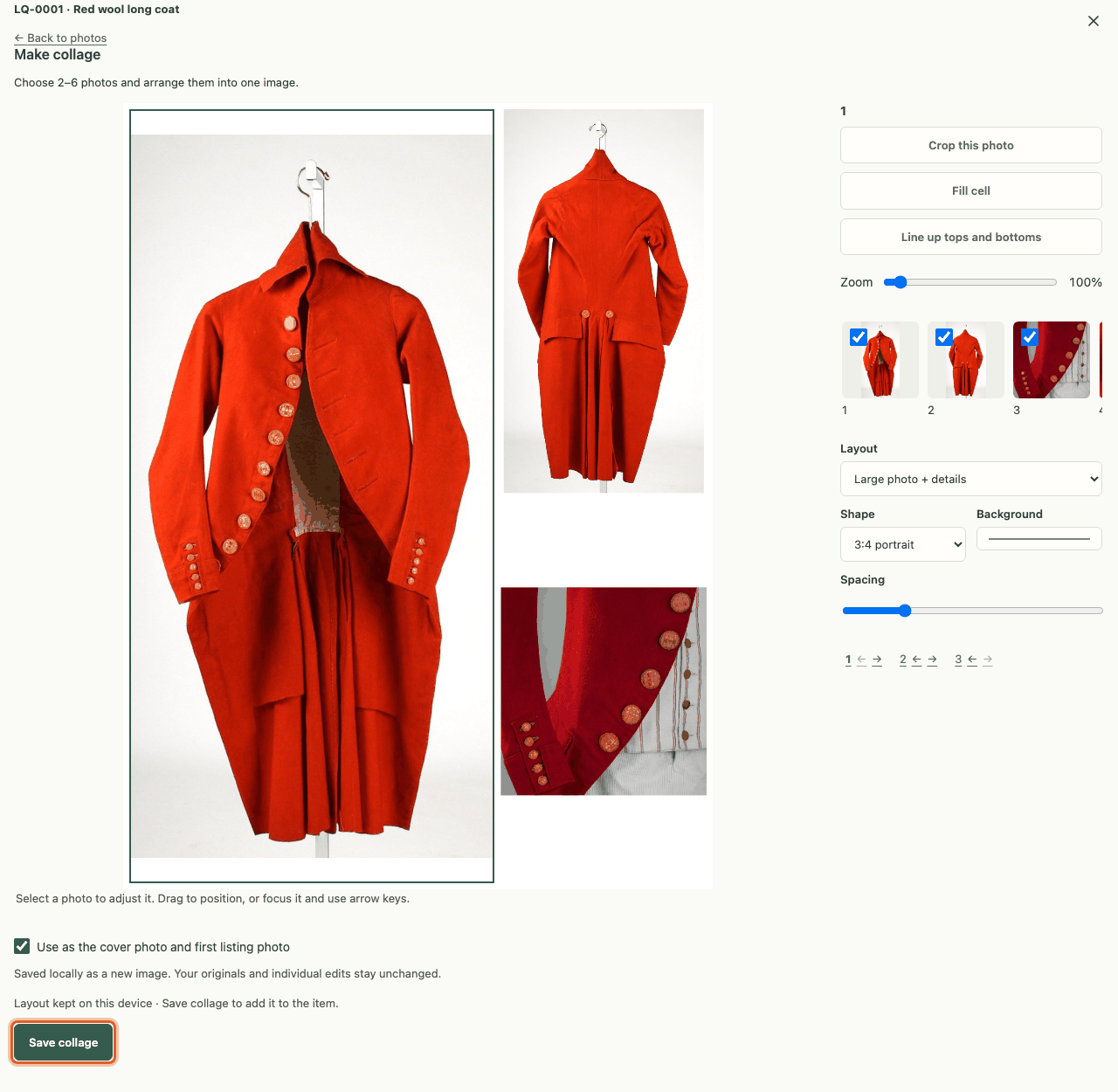
Make a collage
- On the item's Photos tab, press Make collage….
- Choose two to six photos (Include photo in collage).
- Pick a Layout (Grid, Large photo + details or Side by side) and a Shape (3:4 portrait, 4:5 portrait or Square). Set the Background and Spacing.
- Select a photo to adjust it: drag it to position it, use Zoom, or Fill cell. Line up tops and bottoms aligns the photos.
- Press Save collage.
The collage is saved as a new image on the item and goes into the listing. Your original photos and their edits stay unchanged.
Crop one photo in the collage
Select a photo in the collage and press Crop this photo. Draw, move or resize the box (arrow keys nudge it), then press Done cropping. The collage uses only that part of the photo. Reset crop undoes it for that photo. The photo itself is never changed.
Change a collage later
Click the saved collage to open it, then press Edit collage…. Your layout is kept.