Match my listings
Match my listings takes the listings from your shop page on a marketplace and works out which of your Poof! items each listing belongs to. It is useful when you have many listings that are not linked to items yet.
Open Bring in › Match my listings, or My shops in the side pane.
Start a match
- In your browser, open your shop page on the marketplace and scroll until every listing has loaded.
- Save the page. In Chrome: File › Save Page As… › "Webpage, Single File".
- In Match my listings, choose the Marketplace and the Saved shop page, then press Match listings.
Poof! reads only the file you chose. It does not visit the marketplace.
Listings can also arrive from your browser: when the Poof! Chrome helper's page capture is installed, it can send the listings on the shop page you are viewing. The review then says "N listings from your browser" instead of naming a file, and works the same way.
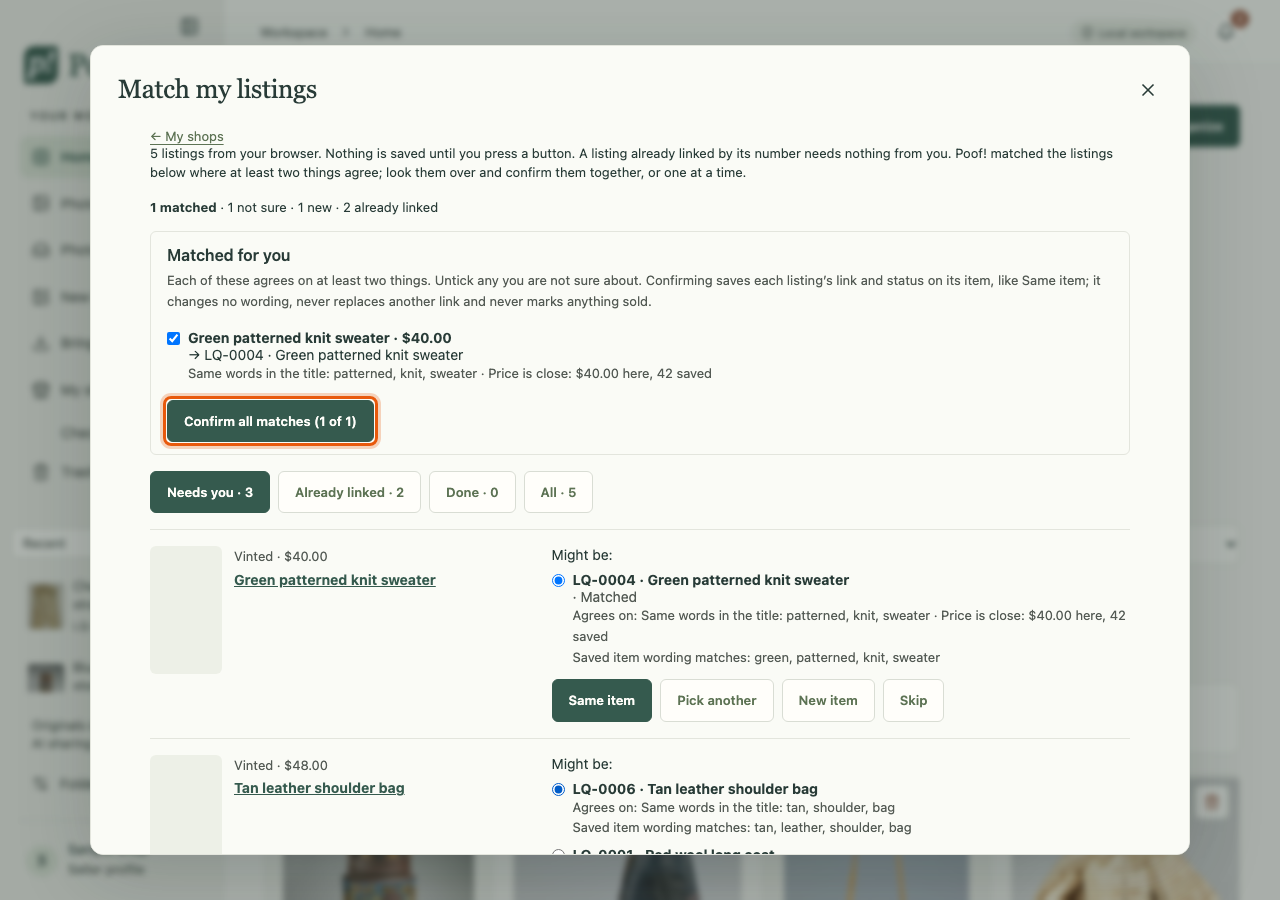
Review the matches
The review starts with one line counting what it found, for example "12 matched · 3 not sure · 2 new · 17 already linked".
- Already linked: Poof! already holds this exact listing number on an item. Nothing to do.
- Matched for you: pairs Poof! is fairly sure about, each ticked. Each shows the clues it agrees on, such as the same brand and size. Untick any that are wrong.
- Needs you: listings with no sure match. For each, choose Same item, Pick another, New item or Skip. Compare photos compares the listing's photo with your item's photos on this computer, as a hint.
Press Confirm all matches to link exactly the ticked pairs in one go. Confirming saves the listing's link and status on the item (and its price where that marketplace has its own wording). It never changes your Main listing's wording when it has any, never replaces a different saved link, and never makes a sold item available again. One line then reads "Linked N listings to your items." with Undo.
A listing that shows Sold is never confirmed with the others. Decide it on its own row, then mark the item sold on its own page.
Earlier matches, Discard and Restore
Your reads are kept under Earlier matches in My shops; press Open to go back to one.
If a read should not be there, for example a page that was not your shop, press Discard this read at the bottom of its review, then Discard. Discarding only hides the read; items and links you already confirmed stay as they are. It moves under Discarded reads, where Restore brings it back with every earlier decision.