Import a marketplace listing
If you already have a listing on a marketplace, you can bring it into Poof!, either as a new item or onto an item you already have. Importing reads; it never changes anything on the marketplace.
Open Bring in › Import a marketplace listing. It works with listings on Vinted (US and UK sites), Facebook Marketplace, ThredUp and Poshmark.
1. Read the listing
- Paste the listing's full address into Marketplace listing URL.
- Press Read listing. Poof! reads that one public page, without your marketplace sign-in.
Some marketplaces, Vinted especially, often refuse to let the page be read. Poof! does not try to get around that. Instead, Paste your listing or use a saved page opens with a plain sentence saying why:
- Paste your listing here: copy the listing's text from the marketplace page, paste it with the title on the first line and the description below, then press Read pasted text.
- Or save the listing page from your browser as an HTML file (in Chrome: File › Save Page As…) and choose it. Poof! reads only the listing details in it.
- Or press Type the details in yourself for blank fields.
2. Check what Poof! found
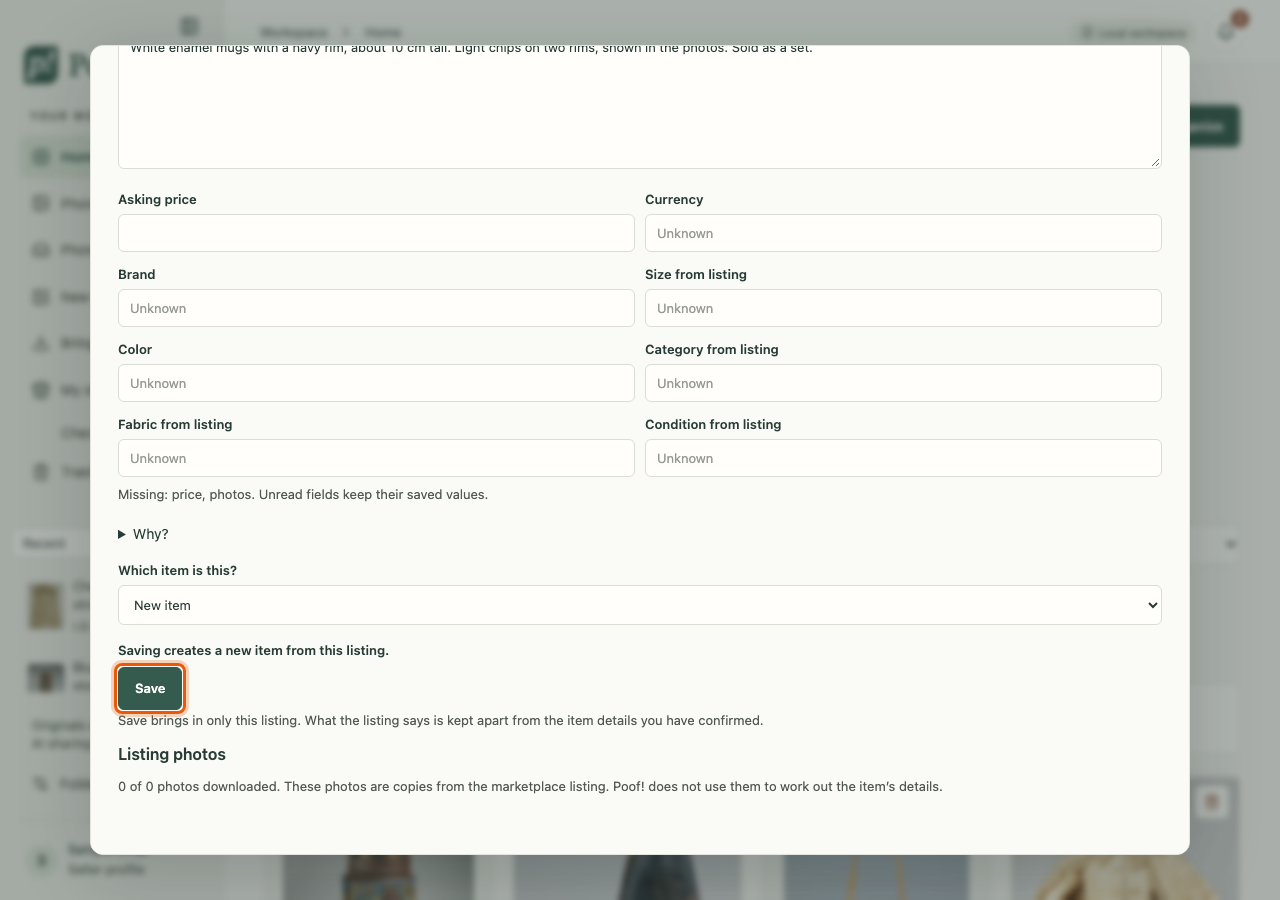
What Poof! found shows the title, description, price, photos and details that were read. These are what the listing says, kept apart from the item details you have confirmed. Edit them if needed.
3. Choose the right item
Under Which item is this?, choose carefully so you don't make a duplicate:
- If Poof! already knows this listing by its exact listing number, it picks the item for you.
- A listing that only looks similar by its wording is offered as a suggestion. Check it is the same piece before choosing it.
- Choose an existing item to add the listing to it, or New item to make a new one.
Directly above Save, a line says in words what will happen, for example "Saving creates a new item from this listing."
4. Save
Press Save. Poof! then shows a notice with one Undo.
- On a new item, the listing's wording becomes the item's Main listing.
- On an existing item, the read wording is kept beside its Main listing for you to choose (see Main listing), unless that marketplace already has its own wording, which the read replaces. Only details the read actually returned replace anything, so a partial read never blanks what you saved.
- If the listing says it sold, Poof! asks you to review the sale before anything is recorded.
Where imported photos go
With the photos box ticked (Also download this listing’s N photos), Poof! downloads the listing's photos onto the item. They appear in their own section on the Photos tab, From your online listing. Poof! keeps them apart from your own photos and never uses them as proof of what the item is.
Saved imports to review
A listing you read but haven't saved onto an item waits in the import window under Saved imports to review. Each card offers Same item, Different item, add it and Set aside. Setting one aside deletes nothing; Restore import brings it back.
Listings imported without some details (for example a missing description) are listed under Listings with missing details, with Add the missing details or Check the new details.
Made a duplicate by mistake?
Delete the extra item (More tools › Delete item…). A deleted item lets go of its listing, so you can import the listing again onto the right item. To merge two items instead, open the one you want to keep and use More tools › Combine with another item….