The item page
Every thing you sell is an item. Open one from Home or from the side pane's item list.
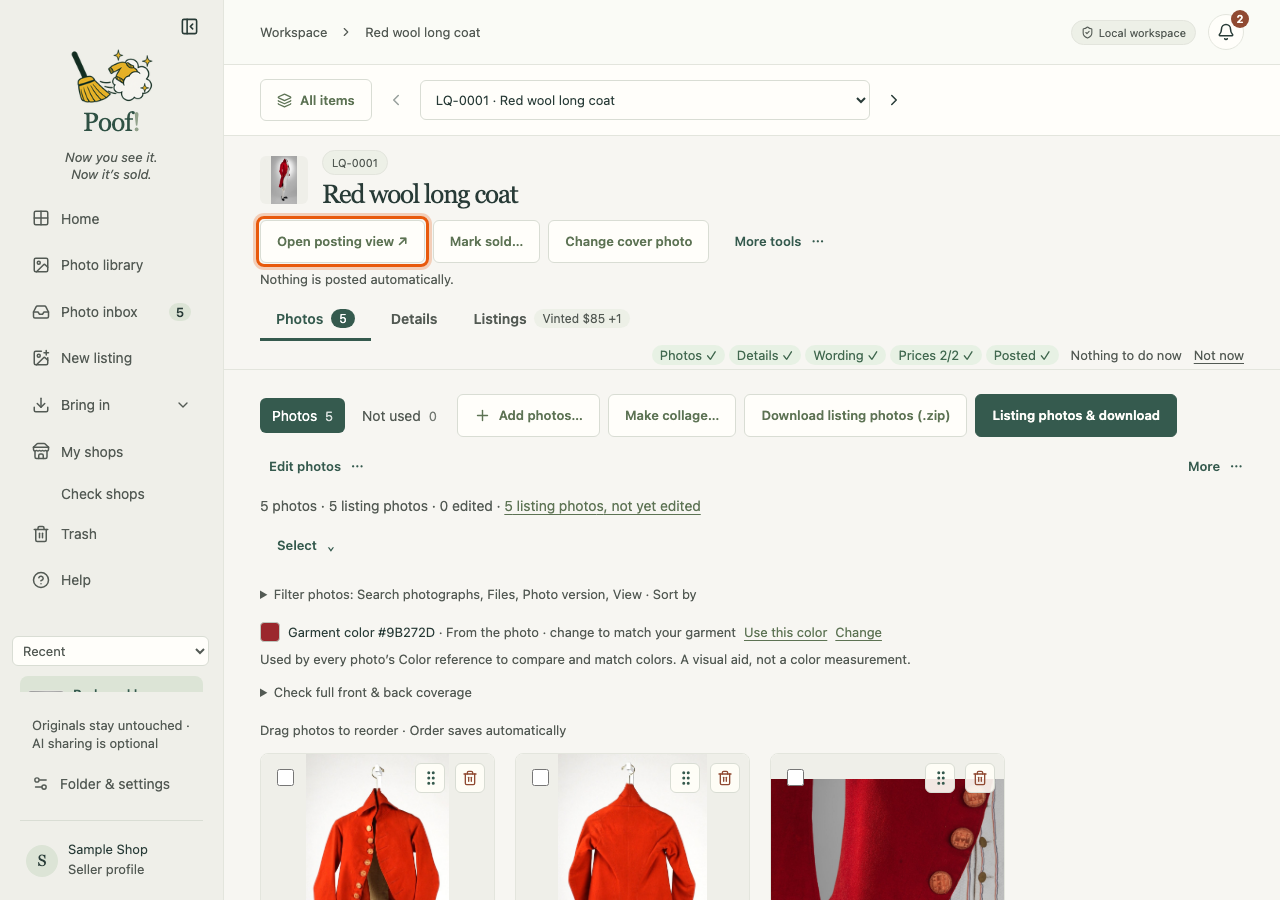
The header
At the top you see the item's cover photo, its code (for example LQ-0001) and its title. The
code never changes, even if you rename the item. Beside them:
- Open posting view ↗ opens a narrow window to place beside a marketplace's Sell page. See Post on a marketplace.
- Mark sold… records a sale. See Mark sold.
- Change cover photo picks the photo shown for this item in Poof!.
- More tools holds Not listing for now, Combine with another item… and Delete item….
The header also says: "Nothing is posted automatically."
The next-step line
Under the header, one line shows the item's progress: Photos, Details, Wording, Prices and Posted, each with a ✓ when it is done. A green button names the next thing to do, such as Add photos, Write the listing, Post it or Choose a selling category. Press it to jump to the right tab.
The Not now link beside it sets the item aside. See Not listing for now.
Three tabs
Photos
All the item's photos, in your order. The first photo is the cover unless you chose another. Drag a photo to change the order.
- Each photo has one badge: In listing or Not used. Press it to switch. Every photo of yours is in the listing unless you mark it Not used. Not used photos stay in Poof! but are left out of downloads, the listing writer and the posting view.
- The views Photos and Not used above the grid show each group.
- The tick box on a photo only selects it for an action. It is not saved. With photos selected, the bar offers Delete selected…, Move selected to another item…, Match background of selected…, Compare 2, and Put in listing or Mark Not used.
- The Select menu has Select all shown, Select none, Invert selection and Use all photos.
- Add photos… adds more photos. Make collage… makes a collage (see Collages). Download listing photos (.zip) downloads the listing photos (see Download photos).
- Edit photos holds tools for several photos at once, such as matching backgrounds and cropping.
- Click a photo to open the large viewer. From there, Edit photo opens the editor (see Edit photos).
Photos copied from one of your online listings sit in their own section, From your online listing. They are not used as proof of what the item is.
Details
The facts about the item: brand, size, measurements, condition, materials and so on, plus your own description, things to mention in a listing and private notes. Every detail is optional.
Suggest details with AI (with ChatGPT on) reads the photos you choose and suggests details. AI guesses are never saved as fact:
- A guessed detail shows "From your photos · needs a look" until you check it.
- Press Looks right to confirm it, or change the value to make it yours.
- Check these one by one walks you through every unchecked guess on the item.
Brand, size, materials and care details are only read from labels that are clearly readable. Anything unknown stays unknown.
Listings
Everything about selling:
- the Main listing title and description, and the listing writer (see Write a listing with AI);
- a row for each marketplace, with its status, price, link and Post on … (see Post on a marketplace);
- profit estimates beside each price (see Profit estimates).
Delete an item
More tools › Delete item… asks first. A deleted item can be restored from Home's deleted items view, with its photos, details and listings. Deleting an item in Poof! changes nothing on any marketplace.