Install
Available on request
The Mac installer is available on request while Poof! is in beta — it isn't a public download yet.
Poof! runs on a Mac with macOS 14 (Sonoma) or later, Apple chip or Intel. A Windows version is coming later; if you are comfortable with PowerShell, see Install on Windows by hand.
You don't need Terminal, Homebrew or anything else first. You need an internet connection the first time you open Poof!.
Download
Ask for a download link; approvals usually come within 48 hours. The link in your email is personal and works for 7 days.
Download Poof! for Mac from idashinder.me. You get one file,
Poof-<version>.dmg (with the version number in its name), in your Downloads folder. The same file works
on Apple-chip and Intel Macs.
Put Poof! in Applications
-
Open the downloaded
Poof-<version>.dmg. A window shows Poof! on the left, the Applications folder on the right and an arrow between them.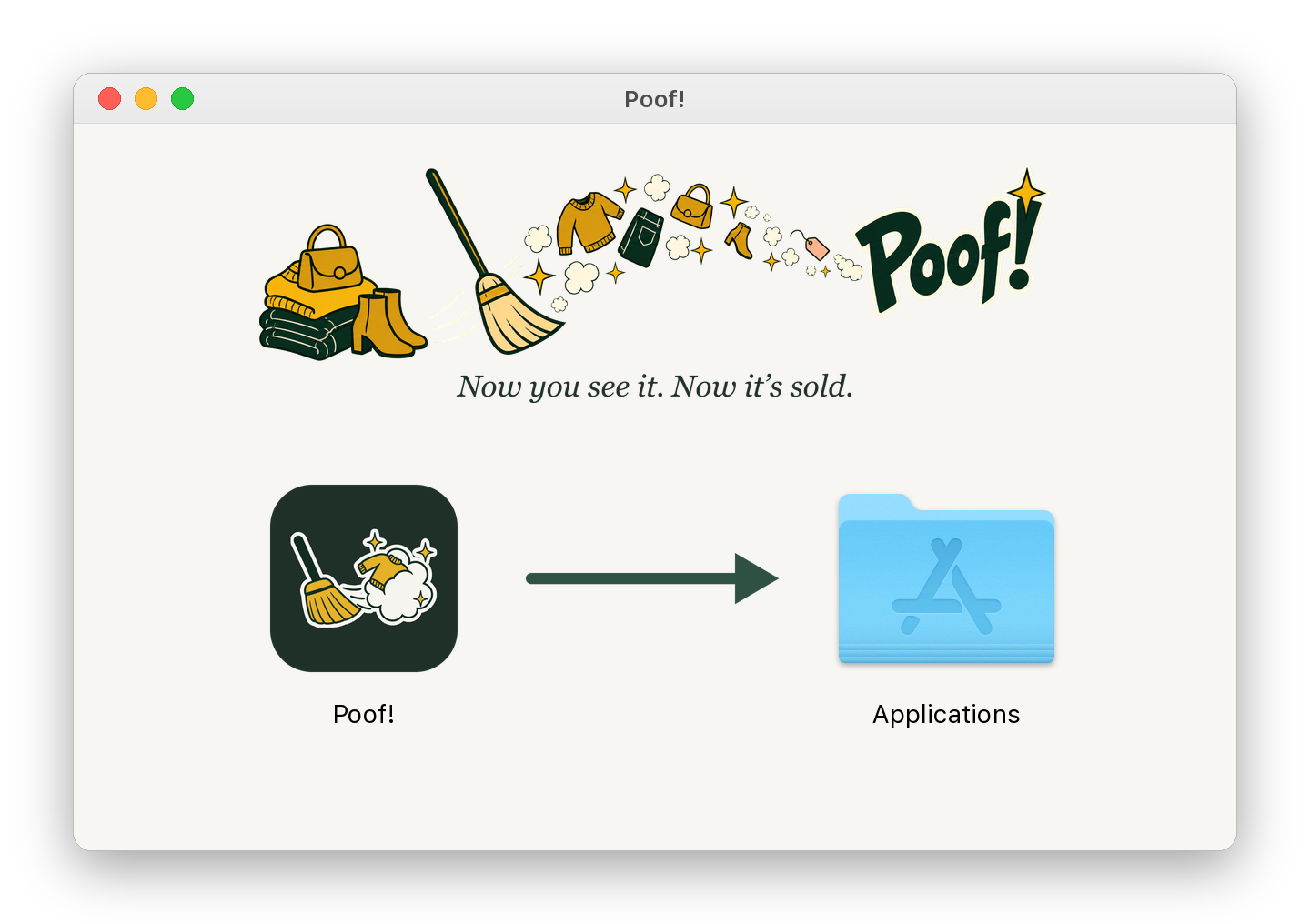
-
Drag Poof! onto Applications. Finder may ask for your Mac's administrator password; type it and press OK.
- Eject the Poof! disk: press ⏏ beside Poof! in the Finder sidebar.
- Open Poof! from your Applications folder.
Open it from Applications, not from the disk
If you open Poof! straight from the disk window, it says Move Poof! to Applications first and does nothing else. Press OK, drag Poof! onto Applications, and open it from there.
The first time: Apple's warning
Poof! is not signed with a paid Apple developer account, so macOS asks you once whether you trust it. What you see depends on your macOS version. You only do this once.
macOS 15 (Sequoia) and macOS 26 (Tahoe)
-
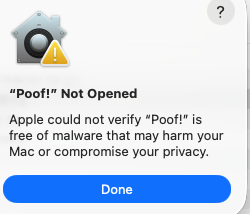
Open Poof! from Applications. A message says "Poof!" Not Opened: Apple could not verify "Poof!" is free of malware that may harm your Mac or compromise your privacy.
-
Press Done.
- Open System Settings (the Apple menu at the top left of your screen, then System Settings…) and choose Privacy & Security in the list on the left.
-
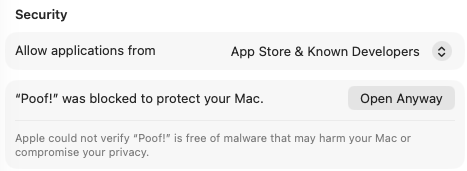
Scroll down to the Security section. The line "Poof!" was blocked to protect your Mac. has an Open Anyway button on its right. Press it.
-
Type your Mac password, then press Open.
The Open Anyway button stays there for about an hour after your first try. If it is gone, open Poof! from Applications once more, press Done, and look again.
macOS 14 (Sonoma)
In your Applications folder, right-click Poof! (or hold Control and click it), choose Open, then press Open in the message that appears.
From then on, Poof! opens with a double-click like any other app.
Setting up Poof!
The first time Poof! opens, a small window says Setting up Poof!, with one line showing what it is doing. It downloads the parts Poof! needs, about 130 MB. On a fast connection this took less than a minute. Leave the window open until it finishes. Show log shows the details; Cancel stops the setup and closes Poof!, and the next open starts it again.
When it is done, your web browser opens Poof! and a ✨ icon appears in the menu bar at the top of your screen. Poof! then asks where your photos are: see First-run setup. Once Poof! is set up, it may show a one-time card offering the selection tools for fixing cut-outs; see Add-ons.
If setup stops part way, the window shows the last lines of what happened, with Try again. See Troubleshooting.
Every day
Open Poof! from Applications. It starts Poof! and shows it in your browser. Poof! has no Dock icon; while it runs, the ✨ icon sits in the menu bar. Click it for:
- Open Poof!: shows Poof! in your browser.
- Check for updates…: opens Folder & settings at Updates in your browser.
- Show log in Finder: shows the file where Poof! writes what happened, useful if something goes wrong.
- Quit Poof!: stops Poof!. Your work is saved. If Poof! is in the middle of something (a scan, moving files), it says so and asks whether to wait or quit anyway.
Opening Poof! again while it runs just shows it in your browser. Quit Poof! in Folder & settings stops it too.
Poof! is only reachable from your own Mac; other devices on your network cannot open it.
If another program uses Poof!'s connection
Poof! talks to your browser through a connection on your own Mac. If another program is already using Poof!'s usual one, Poof! picks another by itself and says so once. Everything works as usual, except the Chrome posting helper, which only works on the usual connection. Poof! moves back by itself the next time you open it after the usual connection is free again. It never stops or changes the other program.
Updates
Open Folder & settings and look at Updates, or choose Check for updates… from the ✨ menu.
- Press Check for updates. Poof! looks once whether a newer version exists; it never checks by itself.
- If one does, press Install update. Poof! downloads it, checks it and restarts on the new version. Your photos, items and settings stay as they are.
If something is wrong after an update, Go back to (followed by the earlier version) returns to the version before.
Now and then a newer Poof! app itself is needed. Then Updates says A newer Poof! app is available, with a link. Download it, and drag it onto Applications as the first time, replacing the old one. macOS then asks once more whether Poof! may open your photo folders.
Other ways to install
People who are comfortable with Terminal can install Poof! with one command instead of the download. The command and its options are in the installation notes that come with Poof!'s code (GitHub: coming soon). It sets Poof! up the same way: the same app, the same folders, the same updates. Opening the downloaded Poof! later takes over such an install; the older Poof! app goes to the Trash, and your photos, items and settings are unchanged.