Photo inbox
The Photo inbox holds photos that are in Poof! but not yet part of an item. Open it from the side pane (Photo inbox, which shows how many photos are waiting) or from Bring in › Photo inbox.
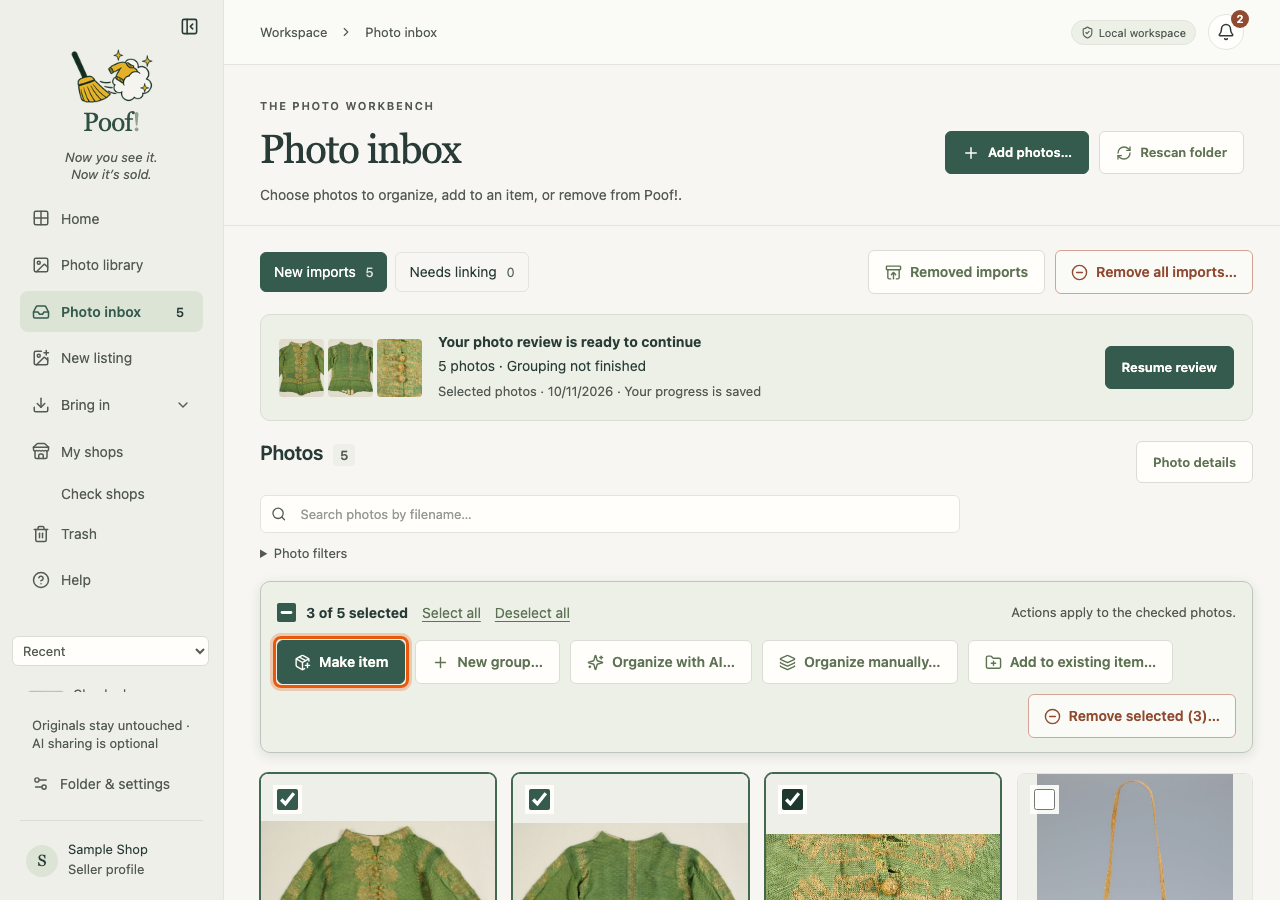
Two views
- New imports: photos you brought in that are not in an item yet.
- Needs linking: photos found inside an item's folder on your Mac that are not linked to an item in Poof! yet. Open one to link it to the right item.
Select photos
New imports start with every photo ticked. Change the selection the way you would in Finder:
- Click a photo's tick box to tick or untick it.
- Tick one photo, then Shift-click another to tick every photo between them.
- Press on an empty part of the grid and drag a box across photos to tick them. Hold ⌘ while you drag to flip their ticks instead.
- Select all and Deselect all work on every matching photo, including ones on other pages.
Act on the selected photos
The bar above the photos offers:
- Make item: makes one item called "Untitled item" from exactly the ticked photos, at once, with no AI. You stay in the inbox and a notice offers Open. If you have ticked every photo and there are many, Poof! first asks Make one item or Cancel.
- Organize with AI… and Organize manually…: open Import & organize with the ticked photos.
- New group…: start a new group in a saved review.
- Add to existing item…: put the ticked photos into an item you already have.
Making an item from the inbox doesn't move any files on your Mac.
Resume a saved review
When you saved an Import & organize review for later, it waits at the top of the Photo inbox under Saved photo reviews. Press Resume review to carry on where you left off. Nothing is sent to AI when you reopen it.
Organize item folders
This is for people who keep a sorting folder on their Mac. If you connected a folder named
00_SORT or 00_to_sort (capital or small letters both work), Poof! can move the photos you
have sorted out of it and into a folder for each item.
- Open Bring in › Organize item folders.
- Press Review folder organization. Poof! lists every file it would move and where to.
- Check the list, then press Move files into item folders.
Poof! checks every file before and after it moves, never replaces a file that is already there, and keeps a record so an interrupted move can be finished with Resume and verify moves. Photos you haven't sorted stay in the sorting folder. Poof! moves files only from a folder with one of those two names, and only when you press the button.