Post on a marketplace
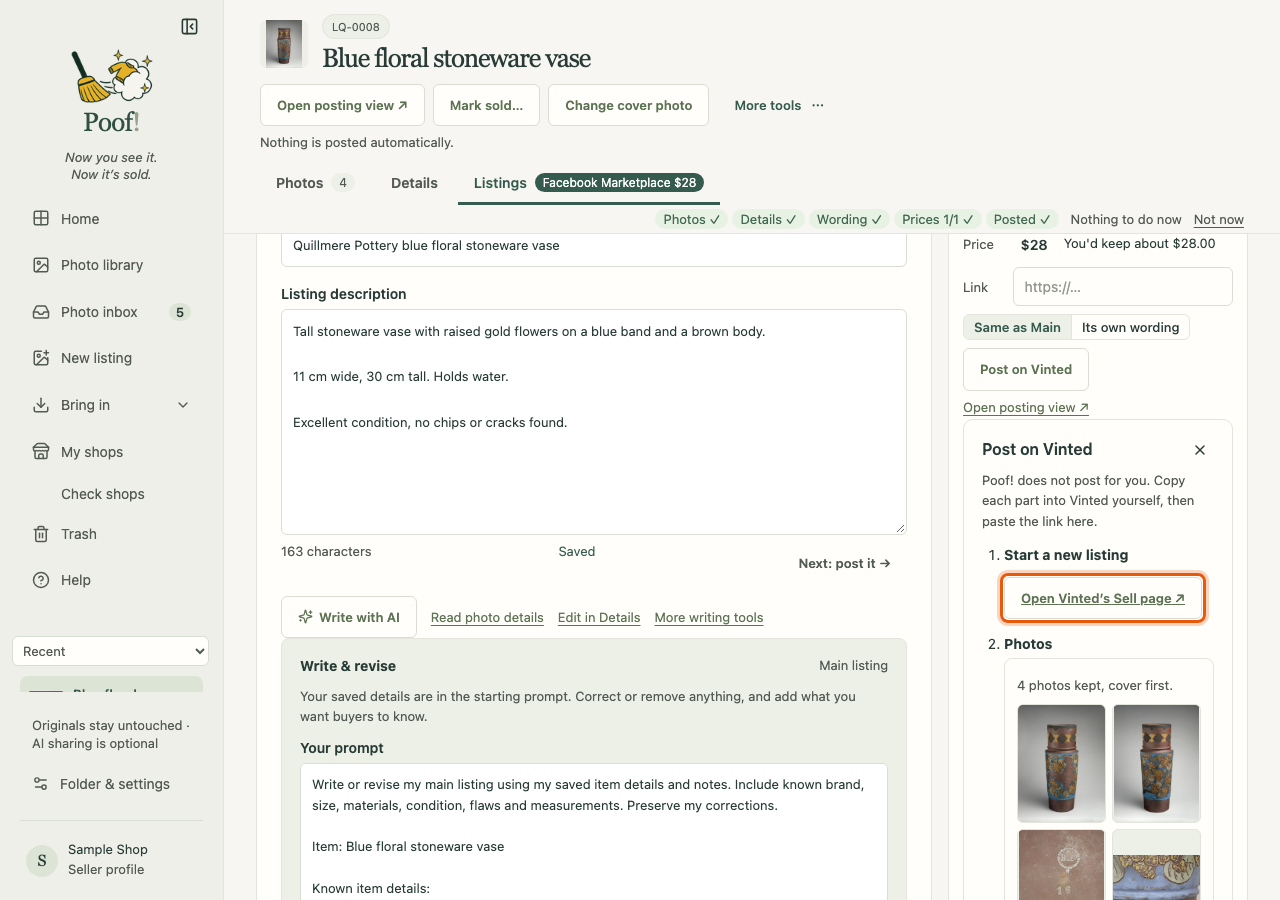
Poof! never posts for you. It puts everything you need beside the marketplace's own Sell page, so you can copy it in. When the listing is live, you paste its link back into Poof!.
From the item page
- Open the item's Listings tab. Each marketplace you plan to sell on has a row.
- Press Post on … in that marketplace's row, for example Post on Vinted. A panel opens
with numbered steps:
- Open …'s Sell page ↗ (for Vinted, Poshmark and Facebook Marketplace) opens the marketplace's page for a new listing in your browser.
- Photos: your listing photos, cover first. See Get photos ready.
- Title, description and price, each with a Copy button. Paste each into the marketplace's form.
- Posted it? Paste the link: see Finish posting.
- If the item has no listing photos yet, the panel offers Go to Photos. If it has no wording yet, it offers Write the listing.
To add a marketplace that has no row yet, press + Post on another marketplace.
The posting view
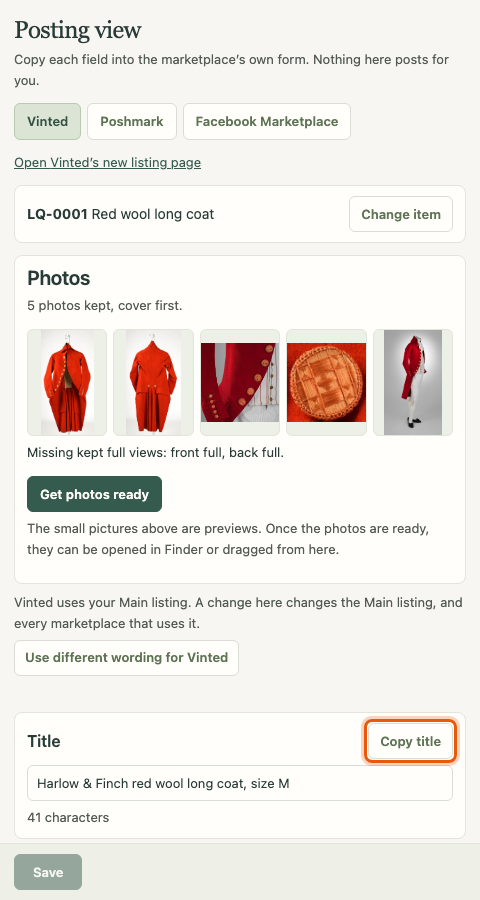
The posting view is the same help in a narrow window of its own, made to sit beside the marketplace's page. Open it with Open posting view ↗ at the top of the item page or in a marketplace's row.
- Pick the marketplace and the item at the top (Change item finds another item).
- Copy each field with its own Copy button: title, description, price and details such as brand, size and condition.
- You can edit the title and description in place. They save when you leave the box, when you copy, or when you press Save. The view says whether you are editing the Main listing or that marketplace's own wording, and offers Use different wording for … or Use Main instead. See Main listing.
- When you come back to the window, it reads the latest wording again. If the wording changed elsewhere while you were typing, your text stays and you choose Save my wording or Use the current wording.
Get photos ready
In the Photos step (on the item page or in the posting view):
- Get photos ready makes upload copies of your listing photos, as edited, named with the item's code and a short title.
- Show photos in Finder opens a folder holding just those copies, so you can select them all and drag them into the marketplace's page.
- Download listing photos (.zip) downloads them as one zip instead.
If you change a photo afterwards, the view says the ready copies no longer match; press Get photos ready again. It also notes a missing full front or back view for clothing.
Finish posting
After you publish on the marketplace:
- Copy the listing's address from your browser.
- Paste it into the link box (Paste the published listing’s link).
- Check the price you listed at.
- Press Save, mark Listed. If the marketplace is already recorded as sold or removed, the button reads Save link and keeps that status.
Poof! records the link and marks that marketplace Listed in Poof!. "Listed" is what you recorded; it is not a live check that the listing is up. Then choose Post on another marketplace or Done.
Saving a link never changes the wording or the price saved for other marketplaces.
The Chrome side panel
If you use Chrome, the posting view can sit in Chrome's side panel, right beside the marketplace page. This needs a small Poof! helper loaded into Chrome once.
Set it up
- Open the posting view in an ordinary browser tab: http://127.0.0.1:8000/posting.html.
- Open its Chrome side panel section and press Put the helper folder in place, then Copy folder address.
- In Chrome, type
chrome://extensionsin the address bar and press Return. - Switch on "Developer mode" on that page.
- Press "Load unpacked". In the window that opens, press ⌘⇧G (Command-Shift-G), paste the address, press Return, then choose the folder.
- Pin the Poof! button: click the puzzle-piece button in Chrome's toolbar, then the pin beside "Poof! posting helper".
- Back in the posting view, switch on Let Chrome’s side panel show this page.
- Open a marketplace page and click the Poof! button. The posting view opens beside it.
To have the panel on the left, open Chrome's Settings, choose Appearance, find "Side panel position" and pick the left side.
What the helper does and never does
The helper only shows Poof!'s posting view in the side panel. When you click its button on a Vinted, Poshmark, Facebook Marketplace, ThredUp or Depop page, it tells Poof! which marketplace you are on, so the view switches to it.
It never types, clicks or submits anything on a marketplace page. It never reads your passwords, cookies or what is on the page, and it makes no network requests. You copy each field and move the photos yourself. The switch in the posting view turns it off at any time.