First-run setup
The first time you open Poof!, it asks where your photos are. You can connect a photo folder, or start with just the photos you choose.
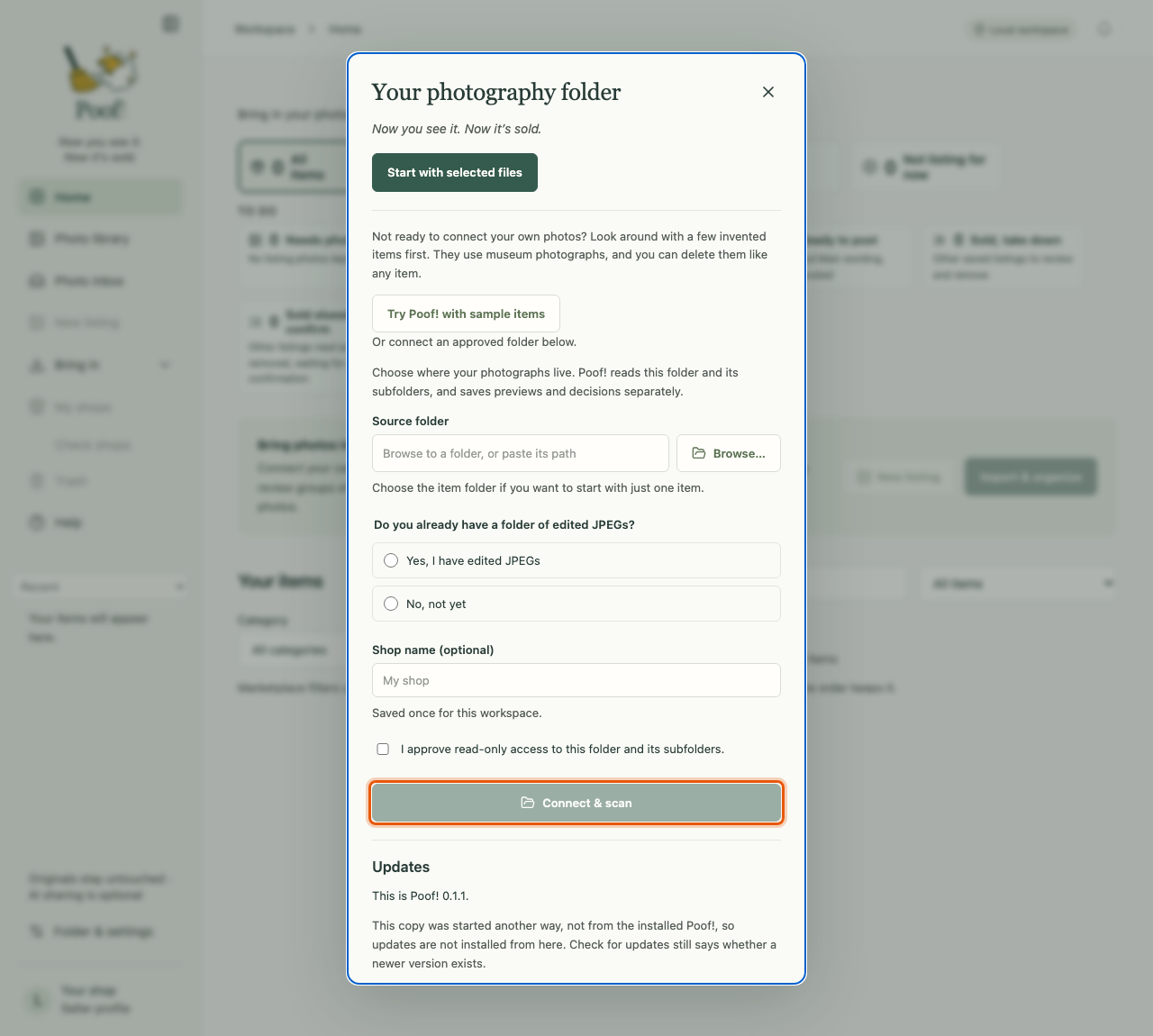
Option 1: start with selected files
Choose Start with selected files if you don't keep your photos in one folder, or you want to try Poof! on a few photos first. Poof! sets up your shop and opens Import & organize, where you choose the photos.
Poof! keeps its own copy of photos you choose this way. Your files stay where they were.
Option 2: connect a photo folder
Connect a folder if your camera or phone photos already live in one place on your computer.
- Under Source folder, press Browse… and pick the folder in the window that opens (Finder's folder window on a Mac, File Explorer's on Windows). You can also paste the folder's path. To try Poof! on one thing first, pick the folder of just that item.
- Answer Do you already have a folder of edited JPEGs?
- Yes, I have edited JPEGs: press the second Browse… and pick the folder inside your source folder that holds your edited copies. If your edited JPEGs sit in the source folder itself, press My source folder already contains the edited JPEGs. Poof! labels JPEGs in that folder as edited photos and the rest as originals.
- No, not yet: continue with your originals.
- Type a Shop name (optional). If you leave it empty, your shop is called "My shop". Poof! asks for it only this once.
- Tick I approve read-only access to this folder and its subfolders.
- Press Connect & scan.
Poof! now reads the folder and makes previews. A scan reads files and makes previews; it does not look at what is in your photos, and it never changes them. Choosing a folder does nothing until you approve it and press Connect & scan.
Read-only means read-only
Poof! keeps its previews, decisions and working copies in a separate folder of its own. The folder you connect is only read. The one exception is a sorting folder you choose to organize; see Photo inbox.
Change it later
Open Folder & settings in the side pane. The same window shows your folder, and also holds My shops, Popular keywords, room backgrounds for photo editing, and Back up item database.