Home
Home is where you see all your items and what needs doing. Open it with Home in the side pane.
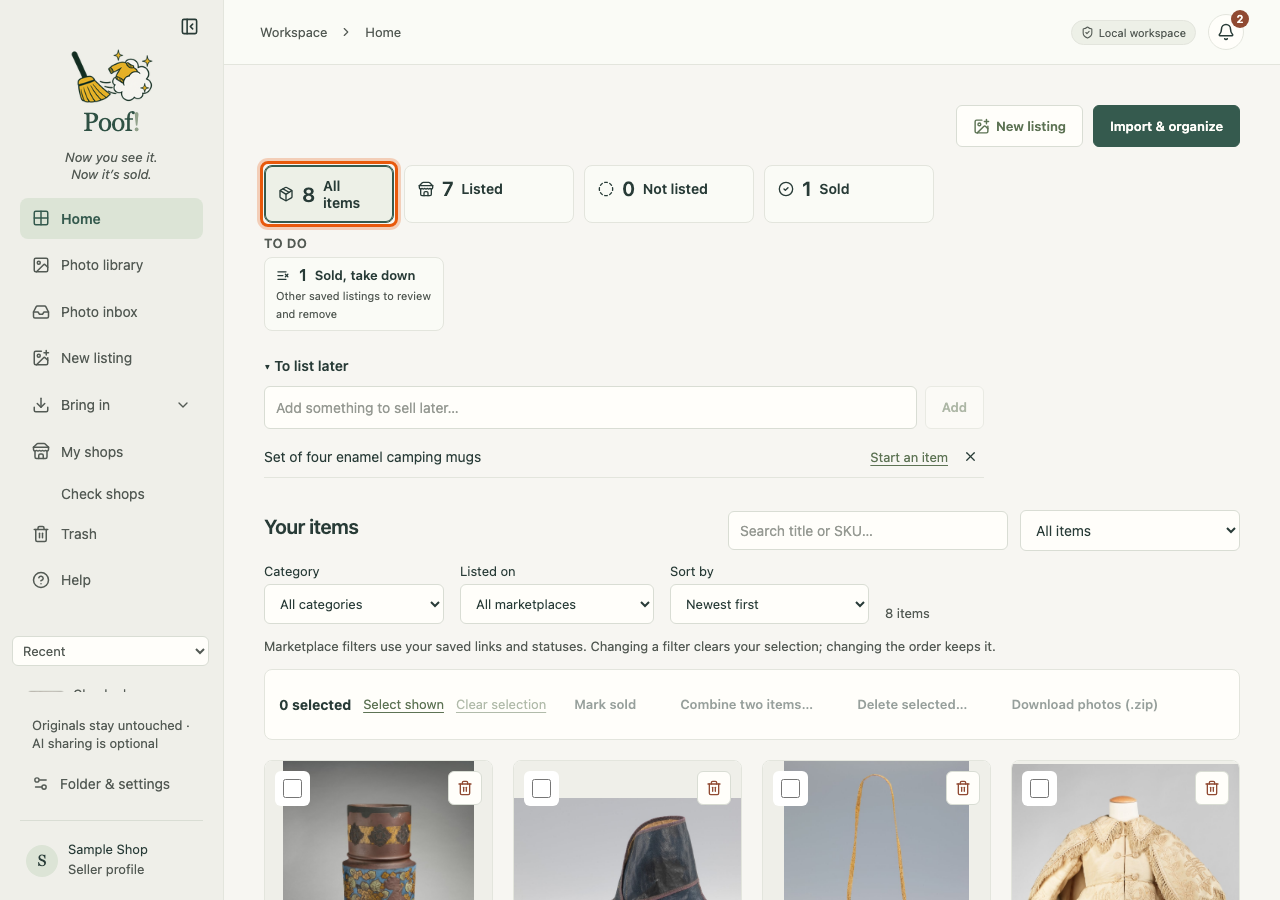
Status tiles
The tiles across the top count your items and filter the list below when you press one:
- All items: everything, sold items included.
- Listed: unsold items with a listing recorded on at least one marketplace. This is what you recorded in Poof!, not a live check.
- Not listed: unsold items with no listing recorded yet.
- Sold: items you marked sold.
Items you set aside have no tile: in Your items, choose More filters › Not listing for now. See Not listing for now.
To do
The To do row shows only what is waiting. Each card filters your items, and an item opened from a card lands on the tab with the work.
- Needs photos: no listing photos yet.
- Needs wording: the Main listing has no title or description.
- Needs a price: posted on a marketplace without a saved price.
- Ready to post: has listing photos and a Main title and description, but nothing is posted. Price and full front and back views are not checked.
- Sold, take down: sold items whose other listings you still need to take down.
- Update from your shops: changes and sales read from your listings. See Update from your shops.
- Photo inbox: new photos to organize. See Photo inbox.
- Photos to link: photos in item folders that are not linked to an item.
Your items
- The search box finds items by title or code.
- Category and Listed on narrow the list. More filters has more views, such as Unsold and Sold, no sale details. Clear filters shows everything again.
- Sort by orders the list: Newest first (the default), Oldest first, Recently changed, Name A–Z or Sold date (newest first). Sold date uses the date in an item's sale details, or else when you marked it sold; unsold items come after the sold ones.
Each item card shows its photo, code, title and one status line, such as "Listed · Vinted", "Not listed" or "Sold".
Home remembers how you left it. Open an item and go back, and Home shows the same filter, sort and search.
Work on several items at once
Tick items, or press Select shown to tick every item in the list. The selection bar then offers:
- Mark sold: marks the items sold in Poof! (add prices and labels on each item later);
- Download photos (.zip): one zip of their listing photos (see Download photos);
- Combine two items…: merge two items that are really one;
- Delete selected…: deletes the items from your inventory. Their photos and saved work are kept, and nothing changes on any marketplace.
View deleted items shows deleted items; tick them and press Restore selected to bring them back.
To list later
Home also has a To list later list for things you mean to sell but haven't photographed yet. See To list later.