New listing
New listing starts one item from a few photos, without going through Import & organize. It is in the side pane, and on Home beside Import & organize.
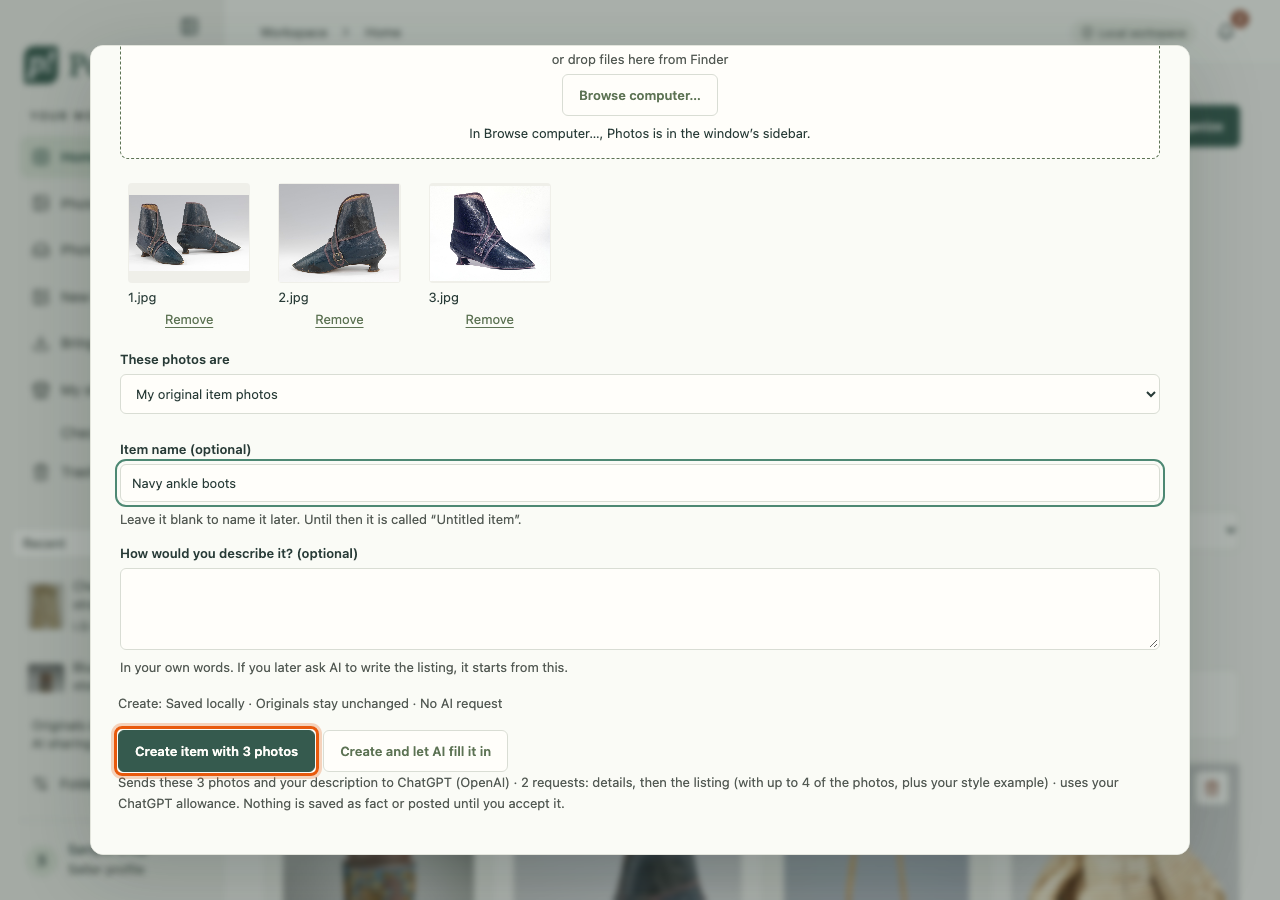
Make an item
- Add photos: drag them in from Finder, paste them (⌘V), or press Browse computer….
- Say what they are: My original item photos, My edited item photos, Screenshots or online photos or AI-generated images. Only your own photos count as photos of the item.
- Optionally give the item a name. Left empty, it is called "Untitled item" until you name it.
- Optionally fill in How would you describe it? in your own words. Poof! saves this on the item and uses it if you later ask AI to write the listing.
- Press Create item with N photos.
Poof! makes the item, adds a copy of the photos, and opens the item. Your original files are not moved or changed. Creating an item never sends anything to AI.
Small previews
If a photo is smaller than about 1,200 pixels on its long side, Poof! warns that it looks like a small preview, not your full photo. This usually happens when photos are dragged out of the Photos app. Use Browse computer… and pick Photos in the window's sidebar, or export the photos from Photos first (File › Export).
Create and let AI fill it in
With ChatGPT switched on and your own photos chosen, a second button appears: Create and let AI fill it in. A line beside it says what will be sent.
It makes the item just like Create, then sends two requests to ChatGPT, one after the other:
- Suggest item details reads up to 12 of the photos and your description.
- The listing writer drafts a title and description from up to 4 of the photos.
The item page shows "AI is suggesting details…", then "AI is writing the listing…". Nothing is accepted for you: press Review suggested details to check the details, and accept the draft under Listings when you are happy with it. Nothing is posted.
In local-only mode, or without photos of your own, this button is not shown.