Write a listing with AI
You can always write a listing yourself: type a title and description on the item's Listings tab and save. If you switch ChatGPT on, the listing writer can draft or change the wording for you. You decide what is kept.
Switch ChatGPT on or off
The writer's AI settings has an AI processing choice:
- Local only — no OpenAI (the starting setting): nothing is sent anywhere. You can still write and save by hand.
- ChatGPT — sends task inputs to OpenAI: AI buttons work. Nothing is sent until you press one.
Poof! remembers the choice for your shop. ChatGPT needs a ChatGPT sign-in through the Codex app; see Add-ons. Requests use your ChatGPT plan's allowance.
Draft a listing
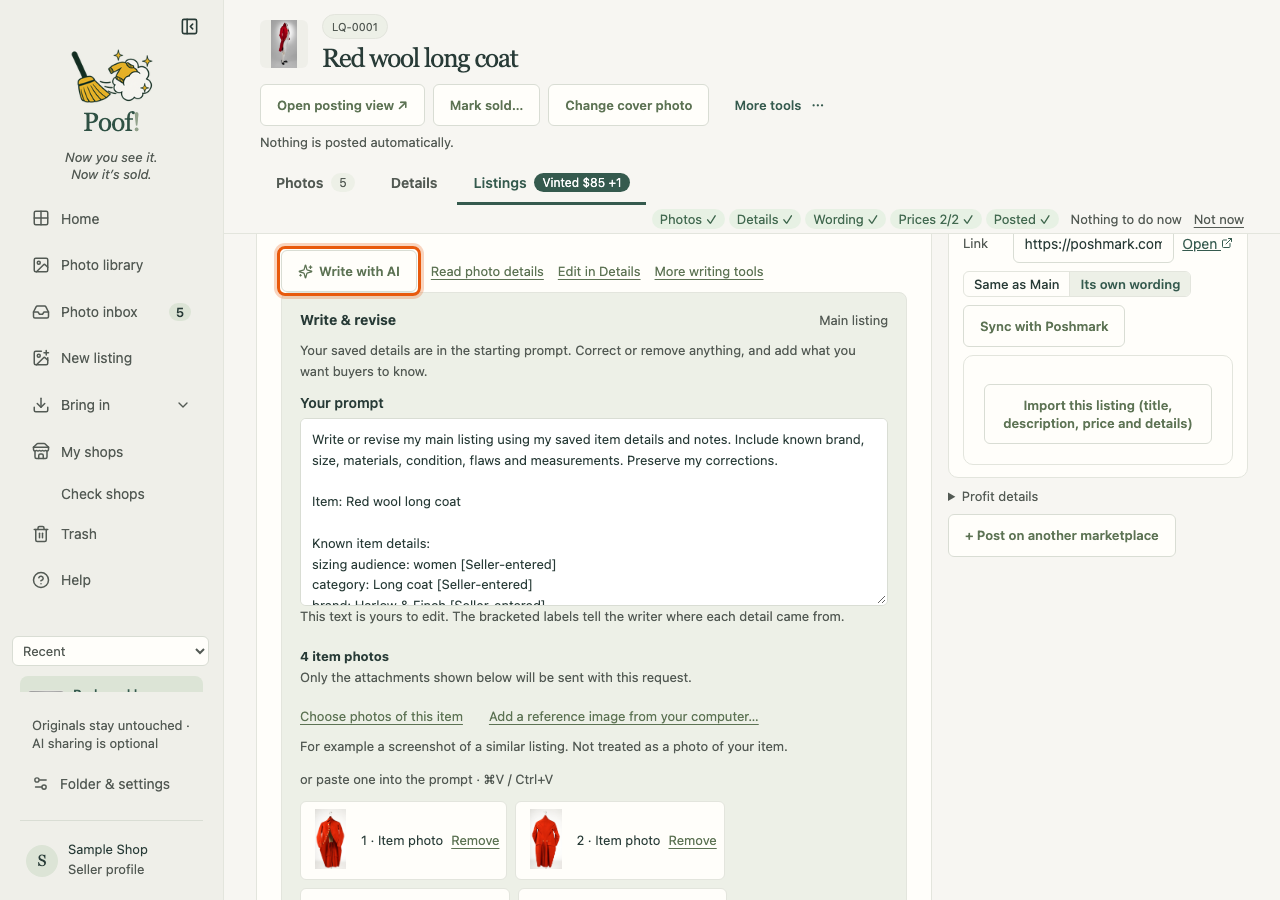
- Open the item's Listings tab and find Write with AI.
- Read the starting prompt. It already holds your saved details, your own description and the things you asked to mention, each labelled with where it came from. Correct anything, and add what you want buyers to know.
- Check the attached photos. For an item's first draft, Poof! attaches up to four recommended
photos, your listing photos first. Remove any you don't want sent; a photo you remove stays
removed. Later requests attach nothing unless you choose photos yourself.
- Choose photos of this item attaches more of the item's own photos. Label and measurement photos help.
- Add a reference image from your computer… attaches something else, for example a screenshot of a similar listing. It is never treated as a photo of your item.
- Optionally press Preview exact request to see exactly what will be sent. Nothing is sent by previewing.
- Press Draft listing. If the item already has a title or description, the button reads Revise listing and works from that wording.
The writer replies in a conversation. If it asks questions, each has its own answer box; fill in what you know and press Send answers. "I don't know" is a fine answer. Quick requests such as Make it shorter, More natural and Include measurements ask for common changes.
What the writer may and may not do
The writer uses your saved details. Unknown details are left out, not invented. Details guessed from photos are marked as guesses in the request, so your own words come first.
Accept a suggestion
Under the suggested title and description, press Accept this title and description. It saves exactly what you see as your Main listing, and you can still edit it afterwards. You can edit the suggestion in its own boxes before accepting.
If the reply offers other titles, Use this title swaps the suggested title. Nothing is saved until you accept.
Edit by hand
Type straight into Listing title and Listing description under Main listing, then save. Hand edits never need ChatGPT. A request you send later starts from your saved wording and changes only what you asked for.
Style examples
If you like how one of your listings reads, open its item and press Use as a style example under its Main listing. You can keep up to three. The writer copies their length, layout and voice, never their facts; prices, links and item codes are taken out before they are sent. Manage lists them, with Remove and Update from current wording. Style examples are sent only with listing-writer requests and show in Preview exact request.
Popular keywords
You can keep lists of words buyers use for a kind of item, for example a list called "Necklaces".
- Open Folder & settings › Popular keywords and press New list.
- Add words yourself. Each word records where it came from: you, a marketplace's search suggestions, eBay sold listings, Etsy search, or AI research.
- With ChatGPT on, Find popular keywords asks ChatGPT once for suggestions. They wait under Suggestions to check until you press Add to list or Skip. Poof! shows no made-up search numbers.
In the writer, choose the list for this item under Use popular keywords and tick the words to use. Ticked words are sent as wording requests, never as facts about the item. Unticking a word for one item leaves the list unchanged.
Update a posted listing with AI
On a posted listing's card, Update with AI takes a request, for example "Add the measurements from these photos", plus any photos you tick. It starts from the saved wording on that card. Accept the result to save it, then paste the new wording into the marketplace yourself.